Download: iisauth_wordpress_v1.zip
This weekend, I was working on an MSDN magazine article and as part of putting together a demo happened to install PHP’s WordPress blog app on IIS7. Of course, I used the latest FastCGI bits available in the box in in Windows Server 2008 Beta 3, and the latest Windows-optimized PHP 5.2.3 build from www.php.net. Long story short, I ended up writing a WordPress plugin that allows WordPress to use IIS authentication methods, including forms authentication.
I was pretty happy to observe that WordPress installed and worked seamlessly on Windows Server 2008. To install it, I ended up doing the following:
1. Check WordPress requirements.
2. Install MySql Community Server 5.1 and associated GUI tools. I disabled TCP connectivity, and enabled named pipes only since I was using it locally.
NOTE: When trying to connect to the MySql instance using the MySql Administrator, be sure to use “.” as server name, not “localhost”. Use “root” as username with the password you set up. Click Advanced and enable named pipes to connect, and specify the instance name as the pipe name (“MySql” for me).
3. Download latest PHP 5.2.3, Windows Non-Thread-Safe build.
4. Follow the WordPress “Famous 5 minute install” steps, creating the MySql DB using the MySql command line tool. Be sure to write down the “admin” user’s password that wordpress generates.
5. Create IIS site, rooted at the wordpress directory root. Put it on localhost, with “myphpblog” host-header binding. Added the host-header to %windir%system32driversetchosts file so I can test with http://myphpblog/ locally.
6. Added “index.php” default document to the site
7. Set up the PHP via FastCGI handler mapping as I describe in the PHP with FastCGI article.
I have to admit that I’ve never written any PHP code worth mentioning before, since most of my development is split pretty evenly between C# (for .NET) and C++. However, PHP seems to be a pretty simple language to get started with, especially if you are not in need of using any extensions that would require some learning about.
WordPress itself provides a pretty neat extensibility model, allowing you to drop in plugins that either replace the definition of some WordPress functions (such the most of the ones used for authenticating users), and intercept other events via filter and action hooks. Most of these are not extremely well documented, so it took a bit of time of groveling through WordPress code to figure them out. Thankfully, findstr makes pretty quick work on finding function references in plain text .PHP files, so a few NY minutes later the hook stuff becomes clear enough to get started.
In the end, I didn’t end up using WordPress for the article (nothing bad against WordPress, but I found another app more suitable for my demo), but not before I ended up writing the WordPress IIS Authentication plugin.
IIS Auth plugin for WordPress
In a nutshell, the plugin allows WordPress to recognize IIS authentication methods, allowing the user to log in with an IIS authentication method such as Windows Authentication, Basic Authentication, or the ASP.NET forms authentication.
The WordPress blog engine would then recognize the IIS user and use it for things like writing posts, leaving comments, or performing blog administration.
This is nice because it allows you to integrate the app with the rest of your website which may be using a particular IIS or ASP.NET authentication mechanism, so that users log into wordpress the same exact way they log into the rest of your application.
NOTE that the user account still has to created in with WordPress, so that it can do internal access control when the username is provided to it by the IIS Auth plugin. A complete solution would basically completely remove the need to maintain the user accounts with WordPress, and use whatever credential store the IIS authentication mechanism was using instead, but doing this (if it is at all possible) was out of scope for me. Perhaps, one day someone could build a WP plugin that replaces its credential store with one that uses ASP.NET’s Membership service, and thus works with different credential stores (hint hint).
To illustrate this, here is what happens when I click the WP login link after setting up the IIS Auth plugin, and configuring ASP.NET forms authentication for the blog website:
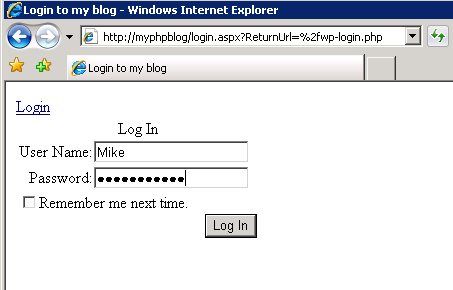
As you can see, I can login in with my makeshift ASP.NET login page with the unskinned Login control. I can now log into WordPress by logging into my website with my ASP.NET Membership credentials.
If I configure basic authentication instead, I get:

As you can see, I can log in with basic authentication instead of the WordPress login form.
Step by step installation instructions
1. Set up an IIS authentication method you want to use to access WordPress.
If you are using IISAuth, you probably already have this set up. I tested with both Windows Authentication, Basic Authentication, and Forms Authentication. You can configure this using the IIS7 Admin tool – select the website/application node where WP is installed, and click the Authentication feature icon. Here is me configuring Forms Authentication:

Admittedly the process is easier for using Windows Auth or Basic Auth, if you don’t already have Forms authentication / Membership set up. I used forms auth with a sample XML Membership provider – you can find it in the attached sample application.
Also note that I am leaving Anonymous Authentication enabled for now, because I am going to need it to be able to access WordPress until I the IIS Auth plugin is activated.
2. Create the “admin” user so you can access the WP admin console and create other users as necessary without locking yourself out J
If using basic or windows authentication, create the admin windows user, and make sure to make it a Member of IIS_IUSRS. DO NOT give this user Administrator privileges on the machine, or make it a member of the Administrators or other powerful groups. You should also disable the right of this user to do interactive logons to the machine. This is just a user with which we will log into WordPress to create other users / perform administrative tasks for the blog once we turn on IIS Auth.
I used Forms authentication / membership so I went and created a Membership user. You can create one from the IIS7 Admin tool by clicking the .NET Users feature (if you are using the built-in SqlMembershipProvider). The Admin tool won’t let you create a user for a non-GACed Membership provider, so you would have to create it yourself using code or your website’s user registration page.
3. Drop the IISauth.php plugin into the wp-contentpluginsiisauth directory (create it since it won’t exist)
4. Go the WP administration console , and log in with the WP’s “admin” user (the password was created and given to you when you installed wordpress. Don’t lose it! If you don’t have it, reinstall).
5. Click the plugins link on the top, and on the plugins screen, activate the IIS Auth plugin

You should see a message telling you that the plugin has been activated. At this point, the IIS Auth plugin is in effect, and whenever you click the login link, you will be prompted to log in using whatever IIS authentication method you configured.
6. OPTIONAL: Disable Anonymous Authentication if needed
If you are not using Forms Authentication, at this point you can go back to the IIS7 Admin tool, like we did in step 1, and disable anonymous authentication. Do this only if you want all access to WordPress to require the user to log in.
If you are OK with the user browsing WP anonymously, until login is required, leave anonymous authentication on (most cases). The user will be challenged to log in as soon as WordPress determines that they should be logged in, such as when you try to access the admin part of the blog, or when you click the Login link.
7. Create other WordPress users for each IIS user that you want to be able to log into WordPress
Use the “admin” user to log into WP’s admin console, and then you can create a user for each of the IIS users you want to have WordPress accounts.
Download IIS Auth plugin for WordPress
Download IIS Auth for WordPress, version 1.0. This download contains a sample application, with a sample XML membership provider, forms auth login page, and the IIS Auth plugin located in the wp-contentpluginsiisauthiisauth.php. You can copy this into your wordpress root to get started, and examine the web.config.sample for the desired settings – or just grab the iisauth plugin from there.
As usual, this is released under the Microsoft Permissive License, which means that this is distributed as is, with no warranties, and you can do whatever you want with the code, as long as you retain this license and all attributions present in the software.
Quick limitations of version 1.0:
1. You can use this on IIS 5, IIS6, and IIS7, although using it with Forms Authentication requires an application running using IIS7 Integrated pipeline. You can still use it on IIS5/6 for Windows Authentication or Basic Authentication.
2. Logout for Forms Authentication requires a login.aspx page in the root of the site, that supports the ?action=logout querystring parameter and performs Forms Authentication logout.
3. Logout for all other authentication methods is performed by asking you to close the browser window. This is how logout must be performed for basic authentication, or windows authentication, since the browser caches the logon credentials and not all browsers correctly clear the cache.
That’s it – happy blogging. Leave any bug reports, feature requests, and other feedback here.
Thanks,
Mike
This weekend, I was working on an MSDN magazine article and happened to install PHP’s WordPress blog
This weekend, I was working on an MSDN magazine article and happened to install the WordPress PHP blog
This weekend, I was working on an MSDN magazine article and happened to install the WordPress PHP blog
Thanks! A while back I tried to figure out how to do this for my own PHP app, and will now be able to do it with your code. Much appreciated.
Glad to hear – let me know how it works out.
Mike
Hello, my name is Drew Robbins. I just started as the IIS Technical Evangelist focused on developers
Any thoughts on when FastCGI will be supported on IIS6?
Matt,
FastCGI is available on IIS6 as the FastCgi Technical Preview 2, and we are working on a beta release that should be available soon.
You can find out more here: http://mvolo.com/blogs/serverside/archive/2007/05/29/The-latest-on-the-FastCGI-project-and-PHP-support-on-IIS.aspx.
Thanks,
Mike
At last, the IIS FastCGI Go-Live release is here! This release enables you to begin hosting PHP applications
Hi, I’m Luca
I’m using your plugin with wordpress 2.2.1 and I have some problems with some admin functions.
Adding a category or adding an user I get a message “You don’t have permission to do that”.
I can modify an existing user or a category.
If I disable the plugin all works fine, I can add new users and new categories, even without relog to wp.
Any idea of how I can fix that?
Thanks,
Luca
Hi Luca,
What IIS authentication mechanism are you using with the plugin? Be sure that you have it enabled for all urls of the website.
Thanks,
Mike
Over the past several year, I've written quite a few modules for IIS7 / ASP.NET. Some of these were
I’ve strongly typed and compiled the included .cs file but it won’t install into the GAC. It’s complaining about the assembly name not matching the file name. I’ve triple checked and no dice.
Am I even barking up the right tree? Any help for a newbie?
I have setup up windows web server 2008, have mysql and php some what running wordpress. WordPress work great until i connect to a php generated url, then all i get is a blank page, funny part is the reqest goes through and can see the change example of white screen of death (http://192.168.1.33/wp-admin/themes.php?action=activate&template=classic&stylesheet=classic&_wpnonce=25e54c5875). even more of a pain to a notivce like me is that (http://192.168.1.33/?cat=1) works. help me out my email is Schwarttzy at Microsoft server network dot com thanks! Also any tips to getting FastCGI working i can only get CGI, i get error 500 with fastCGI.
Voici une vidéo présentée par un de mes collègues de Microsoft qui détaille les étapes nécessaires pour
Voici une vidéo présentée par un de mes collègues de Microsoft qui détaille les étapes nécessaires pour
Hi Chris,
The supplied membership provider is just a sample, I wouldnt recommend using it in production. Its based on http://msdn2.microsoft.com/en-us/library/aa479031.aspx. For a more secure XML based membership provider sample, check http://www.codeplex.com/aspnetxmlproviders (this is not a Microsoft product, so no warranties).
That aside, you need to sign the compiled assembly with a private key in order to be able to install it in the GAC, and then you will need to specify the full strong name in order to reference the type in the providers section. This is pretty easy if you are using Visual Studio. Otherwise, see http://msdn2.microsoft.com/en-us/library/xc31ft41(VS.71).aspx.
Thanks,
Mike
This month, the Enhance Your Apps With the Integrated ASP.NET Pipeline article is finally out in MSDN
Glad to hear – let me know how it works out.
You know what would be a sweet modification to this plugin? Having the plugin automagically create the WordPress account upon login.
There's another delegated-authentication plugin that already does this (<a href="http://wordpress.org/extend/plugins/openid/">OpenID for WordPress</a>) — maybe you could grab the relevant code from that.
Para empezar a probar IIS 7 sobre Windows Server 2008, podemos descargar Windows Web Server 2008 , lo
Para empezar a probar IIS 7 sobre Windows Server 2008, podemos descargar Windows Web Server 2008 , lo
Great Thanx.
Hi there,
Know anyone which plugin to use if I want only the first part (first paragraph) of the article to be displayed? If someone want to read more there will be a “read more” link…
On my blog right now is displayed all of article content and I don’t want this…
I’m talking about the latest 10 articles displayed on the first page of my blog.
I’m using WordPress.
Can anyone help?
hi, i am using IIS7 to run PHP – the issue is that when i use certain authentications there seems to be some file permission errors. For example when i use Windows authentication i am not able to write into a file. For this i have no clue as to which user group i need to give the file permission. On the other hand while using the basic authentication i do not get this message. Initially i had the issue with the anonymous authentication as well bit i rectified this by given write access to all users of my machine (though i know this is not the right way). What am i missing for Windows authentication. The same code used to work without any issues in IIS6 with the same set of permissions. This is the error i get : Warning: fopen(file.txt) [function.fopen]: failed to open stream: Permission denied in ]. Any help would be highly appreciated.
TIA
to Anon: 11/Aug .. Im having hte same problem, dont suppose you found a solution yet?
Hi Anon, Tom,
If you’d like your PHP script to run with the identity of the authenticated user, you’ll need to set fcgi.impersonate=1 in PHP.INI. This is needed to impersonate the windows auth/basic auth users, or the anonymous user.
If you dont do this, the PHP script will execute with the identity of the IIS application pool.
If you dont want user impersonation, and keep this setting off, then simply granting IIS_IUSRS access to the content should be sufficient.
Thanks,
Mike
Hello. Does anybody tried it on WordPress 2.6?? I´m trying to integrate it on an IIS web site that authenticate previously users using digital certificates, this is working, and I pass IIS authentication with digital certs, and now I wanted to use the plugin for single sign on on wordpress. I have created the same users on windows, certs and wordpress, but when I activate the plugin, I get a “You don´t have permission to access” page inmediately.
Thanks!!
Jesús
Hello,
I’m interested in using your plugin, but I’m using IIS6 as most people are, so is there a sample login.aspx that uses an SQL Authentication mechanism?
I tried ton activate the plugin and got error:
You do not have permission to view this directory or page.
I do not know what to do from here.
I have Win2008, IIS7.0, WP 2.7 installed
What directory the error message mentioned?
Thanks
Can i integrate wordpress blog to asp.net page?
The main function would be to post wordpress blog from an asp.net website…
Hello,
I am using IIS5.1, Windows XP, I integrate WordPress in IIS5.1.
http://mschnlnine.vo.llnwd.net/d1/edge/iis/IIS7PHP.wmv
i take help from above demo as above. But this is demo on IIS7.0. I want to make setting for Form Authentication as they did in demo. How i can make it in IIS5.1
Hi there. I’ve been looking for a way to secure our company intranet, which is running WordPress 2.8.5 on Windows Server 2003 and IIS 6. My goal is to use Integrated Windows authentication just like our other sites and your plugin looks like it will do the job. My current problem is that as soon as I activate your plugin, I am immediately told that “You do not have sufficient permissions to access this page. I do still have anonymous access enabled. When you mention “create an admin user” in step 2 above, should this user be a local account on my web server or a domain account? Not sure if this is what’s messing me up or not……
I appreciate any input you can provide.
Thanks
Great work dude, u gave nice post to us.
thx for informations!! 5 stars!
What if you cannot seem to get wordpress to update plugins because it tells you that you do not have permission to do so, yet you can update the blog version with no issues?
Im on iis 7.5, windows 2008, and the most current WP install as of this date.
i might give this one a try..
Has any further work been done by anyone to this? I basically want bbPress and WP users to login through IIS ASP.net forms and be able to set the priv’s. We will have a few people who will be contributing to our blog while everyone else will be read only. The bbPress users will basically be able to create/read/respond to bbPress. Administrative rolls are a very limited number of people. The IIS registration will give users the option of subscribing to a service, but either way they will get to the blog and bb.
Thanks in advance,
Alexis Bor
Sorry, but I couldn”t download your plugin. Can you give me a correct link?
Hi, Mike!
I have a question for you about your IISAuth plugin.
I’m using Windows Server 2008 R2 Standard, IIS Version 7.5.7600.16386, WordPress Version 3.4.1. And I also using Active Directory Integration plugin Version 1.1.3 for automaticly authenticate my AD users when they login in WordPress site.
I activated your plugin and made a couple experiments. And now I see, that basic authentification works well and when I open my WP site I get windows credential box, and when I fill it, I log in! Great! But when I enabled onle Windows Authentification and open my WP site I get site, with Login sign, and when I press it I then get standard WP authentification windows. And the most important is when I fill credentials, I get error “You don’t have priveliges to access that page.” (I get it on my language – Russian, and here I translated it). So, Windows Authentification seems not working, and make a mess with standard WP authentification.
Can you help me with that? Or maybe you can tell me any other ways to enable Windows Authentification with WordPress??
Thanks!
Hi @Anton
I’m on the same boat as you, have you come up with a solution ?
Hi, I am using the RealDolmen IIS Authentication Plugin and it is working great with Internet Explorer. However, it dosn’t work with FireFox. When I go to my site in FireFox, it doesn’t auto-login – I have to go to wp-login.php and login in manually. It might be some setting in FireFox that I am unaware of.
Any help would be greatly appreciated.
Sharon
hi m8
i have website managed by Direct admin and my download server managed by IIS 7.5
web site host and download server seprated
every request for download is free and managed by anonymouse authentication
i want user download by user and password stored on website database
can u help me or make anything for me?
if yes say me Price ?
Thx