As you know, IIS 7.0 provides a number of ways to manage configuration other then MWA, including IIS Configuration COM objects for script, IIS Configuration COM objects from .NET or native clients, WMI, the IIS Manager tool (inetmgr.exe), and AppCmd. While all of these can be used to manage an IIS 7.0 box remotely (AppCmd with extra help of a remote shell environment or WMI), MWA remains one of the most common options because its so easily accessible from .NET.
Microsoft.Web.Administration uses the IIS 7.0 configuration objects under the covers, just like all of the other management options (except for IIS Manager, which uses the IIS Management service, and WMI, which uses the WMI DCOM remoting infrastructure).
Incidentally, this also means that Microsoft.Web.Administration can be used to remotely manage a Server Core installation.
This is despite the fact that currently Server Core does not support the .NET Framework – and is possible because MWA uses the IIS configuration COM objects as the underlying provider, which is native. So, while you cannot use MWA to manage a Server Core server locally, you can do it by running the .NET program remotely on a normal Windows Server 2008 or Windows Vista SP1 machine. However, you cannot use IIS Manager to manage a Server Core server remotely, because IIS Manager uses the IIS Management Service for remote management over HTTPS, which currently is not available on Server Core.
This brings us to the core of the issue: MWA uses the IIS configuration COM objects to manage the server, and therefore in the remote case requires DCOM access to the remote machine.
By default, DCOM access is blocked by Windows Firewall. Therefore, when you try to connect to a Windows Server 2008 or Windows Vista SP1 computer using Microsoft.Web.Administration, or another mechanism that also uses the IIS Configuration COM objects (everything except for WMI and IIS Manager), you will receive the RPC_S_SERVER_UNAVAILABLE error.
To enable DCOM access, you'll normally need to open TCP/135 for the DCOM port mapper, and the entire dynamic port range between 1024 and 65535 used by DCOM. Obviously, this is not something you want to do, especially not on a production server.
Luckily, DCOM provides a way to specify a fixed port for each COM+ package, which allows to enable remote configuration access by opening two ports:
- TCP 135 – DCOM port mapper
- A single TCP port for the IIS configuration COM objects
You can read more about this approach in Using Distributed COM with Firewalls.
————————————————————————————
Go here to skip the reading, and grab the batch file to configure remote IIS config, and the RemoteConfigTest.exe tool to test IIS config connectivity.
————————————————————————————
Here are the 3 steps to do it:
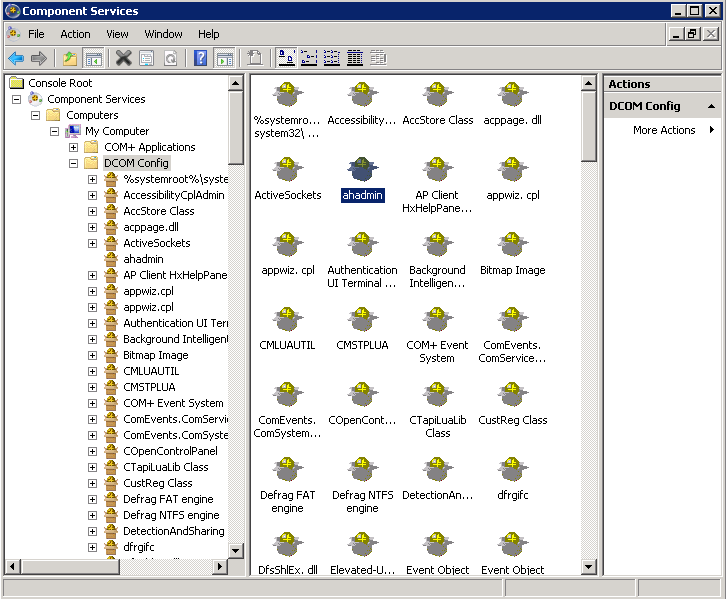
1) Configure the IIS configuration objects to use a fixed DCOM port
– Run dcomcnfg.exe
– Expand Component ServicesComputersMy ComputerDCOM Config, select the “ahadmin” COM+ package
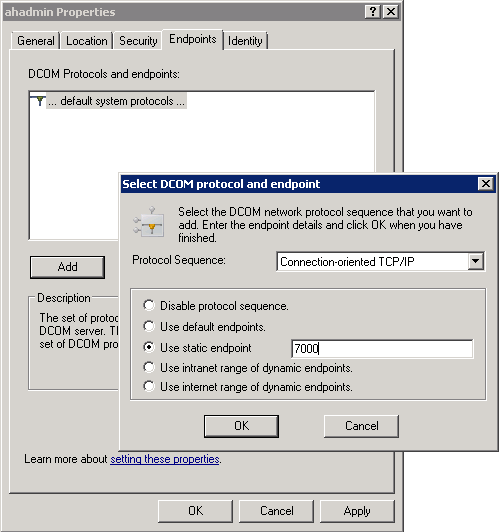
– Select PropertiesEndpoints tab, click Add:
– Select “Connection-oriented TCP”
– Set fixed port
Dcomcnfg.exe:
Setting the endpoint configuration:
For command line usage, or if you are on server core, here is the equivalent:
> REG ADD HKEY_LOCAL_MACHINESOFTWAREClassesAppID{9fa5c497-f46d-447f-8011-05d03d7d7ddc} /v EndPoints /d "ncacn_ip_tcp,0,<PORT>" /t REG_MULTI_SZ /f
(where <PORT> is the TCP port between 1024 and 65535 you'd like to dedicate to IIS config)
2) Open the required ports in the firewall
– Open TCP port 135 for the DCOM port mapper
– Open the selected TCP port
I additionally secure the opened ports as follows:
-
Private profile only
-
Set scope to “Local subnet” only, or specific computer addresses on the network
-
Restrict ports to the process/services that provide DCOM access to the IIS config COM objects
For command line usage, or if you are on server core, here are the commands:
> netsh advfirewall firewall add rule name="RPC Mapper" dir=in action=allow profile=private remoteip=localsubnet protocol=tcp localport=135 service=RpcSs
> netsh advfirewall firewall add rule name="AHADMIN Fixed Endpoint" dir=in action=allow profile=private remoteip=localsubnet protocol=tcp localport=<PORT> program=%windir%system32dllhost.exe
(where <PORT> is the fixed TCP port you chose in step 1)
You can also use ipsec to restrict access further.
3) Insure adequate access
You will need Administrative privileges on the remote machine in order to use IIS Configuration objects. This means that you either need to be logged in as/impersonating the local Administrator account with a syncronized password, or a domain account that has Administrative privileges on the remote server.
Due to UAC, you will not be able to use a local user other then BUILTINAdministrator, even if that user is a member of the Administrators group on the remote machine (that is, unless you disable UAC).
There are additional things you can do by modifying activation ACLs on the COM+ package or DCOM security settings, but these are out of scope of this post.
4) Reboot
I've seen cases where a reboot is required to pick up the DCOM changes. Possibly because RpcSs caches the DCOM activation settings and therefor
e requires a reboot (its not possible to restart RpcSs).
If you are unable to connect remotely after going through the steps above, be sure to reboot and try again.
Tools you can use:
1) Batch file that will perform steps #1 and #2 for you:
> iisremoteconfig.bat 5000 – to setup IIS config access on port 5000
> iisremoteconfig.bat 0 – to remove the IIS config access
(NOTE: A reboot may be required to activate these settings)
2) The RemoteConfigTest.exe tool that will attempt a connection and diagnose the connectivity issues if any:
> RemoteConfigTest.exe 192.168.0.150
This tool will alert you if you have a firewall connectivity problem, forgot to register the IIS configuration COM objects, or do not have sufficient permissions to use them.
Thanks,
Mike
It's been one week since I left Microsoft, and what a week its been! I dont remember the last time
Thanks for the tool!
Mike Volodarsky , un de nos spécialistes les plus productifs en matière de communication sur
IIS 7.0 provides a number of APIs that you can use to manage configuration remotely. This post provides
Sent me deily newsletter plz
Mike dot net framework is working on Server Core. This way http://dmitrysotnikov.wordpress.com/2008/05/15/powershell-on-server-core/ provides installing .net framework on Server Core. Note that these are in no way official or supported by Microsoft.
Mako,
Interesting post. Unfortunately until this is supported officially via the new CLR designed for server core, its not a feasible production option for enterprises.
But, since you could use powershell and MWA against a server core server remotely, this limitation may not even matter in the real world. Of course, for individuals playing with server core, running management tasks locally is more of an issue …
Thanks,
Mike
I have been working on IIS 7 and ASP.NET applicaton, that does provisioning (copied the code from litwarehr) in Windows 2008 Standard Server.
I am running into a problem where when this code runs:
private static string GetWebSiteNameById(ServerManager serverManager, long parentWebSiteId)
{
if (serverManager != null)
{
foreach (Site site in serverManager.Sites)
{
if (site.Id == parentWebSiteId)
{
return site.Name;
}
}
}
return String.Empty;
}
I get the exception:
Retrieving the COM class factory for remote component with CLSID {2B72133B-3F5B-4602-8952-803546CE3344} from machine localhost failed due to the following error: 80070005.
I tried searching in the internert and tried all different settings from disabling UAC, setting DCOM, firewall ports extra… nothing helps…
I am testing locally on my localhost, the provisioning user is part of the administrator group.
any help..
thanks in advance
Thanks for this tools Mike. But I have no luck to make it works. Here are some step I have done on Core WebServer.
– I run command iisremoteconfig.bat 5000 , and then reboot server.
– I run RemoteConfigTest.exe [ServerIP] from another computer, but it return this result
IIS 7.0 Remote Config connectivity check
by Mike Volodarsky
More info: http://mvolo.com/blogs/serverside/archive/2008/05/26/Accessing-IIS-7.
0-configuration-remotely-and-on-server-core.aspx
Connecting to web-core-server …
RPC_S_SERVER_UNAVAILABLE. Check network connectivity, insure RpcSs service start
ed, open firewall settings to allow DCOM and Ahadmin remoting.
– I check netstat on my WebServer Core, but it has no running services listening on port 7000.
I think this is not the firewall issue.
Could you help me on
Hi Mike.
IIS7 Manager client installed on my Windows XP client. It always try to connect to webserver via port 8172. but on my webserver core was run iisremoteconfig.bat 7000. What should I do next.
Hi JOBBO,
IIS Manager uses the web management service to manage the server, it does not use MWA configuration remoting. This article applies to configuring MWA remoting for connecting to remote configuration with MWA programs.
For configuring IIS Manager remoting, please see the appropriate content on iis.net.
Thanks,
Mike
Thank you for submitting this cool story – Trackback from NewsPeeps
I’ve got this working within the same domain between a Vista 64-bit workstation and Windows Server 2008 box but not on a Win2008 server in a child domain – access is denied. The credentials for the parent and child domains are synchronised. The problem is that I can’t find out where the problem is using Sysinternals Process Monitor or the Event Logs because nothing bad is showing.
Any idea how to fix this?
Someone referenced this post to answer question “The purpose, use and configuraiton of UAC in Windows 7.?”…
Hi Mike
I read your article to solve remote connection issue over MWA between Win 7 machines. At last I succeded it (Took approx. 2 days with a lot of head bang). Also while doing this I learned a lot of new kind of things. Thank you very much for your awesome article. Thank you too.
Erhan Kaluç
For anyone struggling with not being able to change ahadmin properties due to being greyed out, see this stackoverflow answer:
http://serverfault.com/questions/242714/how-can-i-enable-ahadmin-properties/242719#242719
So, I have attempting to use this .dll in a multi-threaded fashion collecting multiple servers in parallel. I found that this assembly intermittently throws an error when doing so. It is a standard windows access error “Creating an instance of the COM component with CLSID {2B72133B-3F5B-4602-8952-803546CE3344} from the IClassFactory failed due to the following error: 80070005” which is misleading. The error eventually goes away then the com object is restarted or the system is not making any new connections. This is disappointing, this tells me that the assembly (.dll) does not scale well. It forced me to rewrite some of the code that we have created. If anyone has any suggestions please feel free to let me know. Thank you