In the course of IIS7 development, the team and I have answered an infinity of questions about IIS7 on any possible topic imaginable.Ironically, neither I nor anyone else I know on the team has ever answered the most basic question – what is the minimum set of steps necessary to get a website running with IIS7?
This post answers this exact question, and explains the key IIS7 concepts of sites, applications, and virtual directories (vdirs), which must be created before your IIS7 server can serve a single request.
Update: We recently launched a service that significantly helps you understand, troubleshoot, and improve IIS and ASP.NET web applications. If you regularly troubleshoot IIS errors, manage Windows Servers, or tune ASP.NET performance, definitely check out the demo at www.leansentry.com.
It also provides the steps necessary to create IIS7 sites, applications, and virtual directories, and options for configuring them.
If you are familiar with IIS6, read on to learn about critical differences in the way sites, apps, and vdirs work on IIS7, and how to create and manage them using IIS7 tools.
If you don’t care about the background, and just want to know how to create your first IIS7 website in the quickest way possible, jump ahead.Then, come back and read about what it all means …
So, what’s the deal with sites, applications, and virtual directories?
Before you can serve a single request from your IIS7 server, you need to create a set of configuration that describes how the server listens for requests, and how these requests are then dispatched to your scripts or static files.To do this, you need to at minimum create a site, an application, a virtual directory, and an application pool, which together provide the basic configuration necessary to serve your website (to be fair, the default configuration of the server already includes a set of these that you can use right away – more on that later).
A site is the top-level logical container that specifies how http requests are received and processed – it defines a group of bindings that determine how the site listens for incoming requests, and contains the definitions of applications/virtual directories that partition the site’s url namespace for the purposes of structuring your application content.
A binding is a combination of protocol name and protocol-specific binding information.While IIS7supports multi-protocol bindings (WCF’s soap-tcp, FTP, etc), we will focus on the http path only here.So, for our purposes an http binding effectively defines an http endpoint that listens on:
·A specific interface ip address (or all interfaces)
·A specific port number
·A specific http host header (or all host headers)
This way, you can configure many sites on your server that listen on different ip addresses, different ports, or on the same ip address / port but with different host headers.
It’s important to note that the url of the request has no part in determining which site the request is routed to – only the bindings do.All requests received on a binding are sent to the site that owns the binding, so effectively each site owns its own full url namespace starting with “/”.
This url namespace is then partitioned further into applications, and then further yet by virtual directories.
An application is a logical container of your website’s functionality, allowing you to divide your site’s url namespace into separate parts and control the runtime behavior of each part individually.For example, each application can be configured to be in a separate application pool, thereby isolating it from other applications by putting it in a separate process, and optionally making that process run with a different Windows identity to sandbox it.The application is also the level at which ASP.NET applications / appdomains are created.
Each application has a virtual path that matches the initial segment of the url’s absolute path for the requests to that application.A request is routed to the application with the longest matching virtual path.
– Each site must have at least the root application with the virtual path of “/”, so any requests not matching other applications in the site will be routed to the root application.
Finally, a virtual directory maps a part of the application url namespace to a physical location on disk.When a request is routed to the application, it uses the same algorithm to find the virtual directory with the longest virtual path matching the remainder of the request’s absolute path after the application path.
– Again, each application must have at least the root virtual directory with the virtual path of “/” to be functional.
For example, here is how a request to /app1/dir1/file.txt may be routed based on site layout:
|
Site layout |
Request routing |
|
“/” APP |
“/” APP, “/” VDIR |
|
“/” APP |
“/app1” APP, “/” VDIR |
|
“/” APP “/” VDIR |
“/” APP, “/app1/dir1” VDIR |
Let’s look at an example:
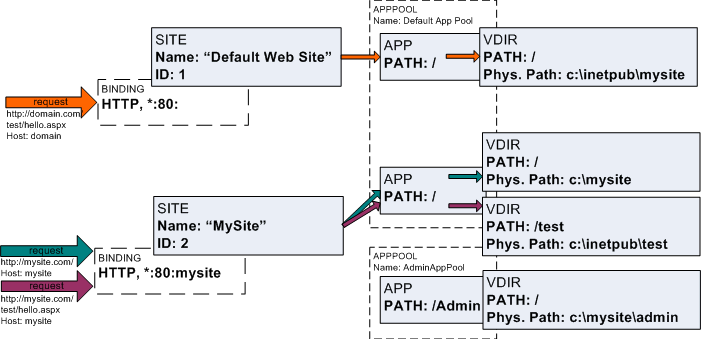
In this example, I have two sites:The default IIS7 site named “Default Web Site”, and another site named “MySite”.
“Default Web Site” site has a single binding enabling it to receive requests on port 80 of all interfaces, with no specific host header specified.The “MySite” site also listens on port 80 of all interfaces, but it only receives requests that specify “mysite” in the host header.The ability to host multiple sites on a single port using host headers is critical for mass hosting scenarios,and is enabled by the http.sys kernel driver that performs low level request management on IIS’s behalf.
A request to http://domain.com/test/hello.aspxwith host: domain is received on port 80, and is dispatched to “Default Web Site”.Then, its routed to the root application, and the root virtual directory within it, and the physical path of the file served for this request becomes c:inetpubmysitetesthello.aspx.
A request to http://mysite.com/ with host: mysite is received on port 80, and is dispatched to“MySite” because it matches the host header specified by “MySite”’s binding.As before, it is routed to the root application, and its root virtual directory, with the physical path being c:mysite, a directory.
Finally, a request to http://mysite.com/test/hello.aspx with host:mysite is received on port 80, and is again dispatched to “MySite”.It is routed to the root “/” application, but within that application, it is routed to the “/test” virtual directory, because the http://mysite.com/test part of the url matches the virtual directory’s path.So, the physical path of the file served becomes c:inetpubtesthello.aspx.
What’s an application pool?
An application pool is technically not a part of the site / application / virtual directory containment hierarchy, but it is an important part of configuring the server to be able to serve requests to the application.
An application pool defines the settings for a worker process that will host one or more IIS7 applications, carrying out their request processing.The application pool is a unit of process isolation, since all request processing for an application runs within its application pool’s worker processes.It is also a unit of isolation from a security perspective since the application pool can run with a different identity, and ACL all needed resources exclusively for itself to prevent applications in other application pools from being able to access its resources.
The application pool mechanism has been introduced in IIS6, and has been a key strategy in supporting IIS6’s stellar security record.In IIS7, it has been further enhanced to offer improved isolation and scalability – I will cover strategies of using application pools efficiently in a future post soon.
So, how do I create a simple IIS7 site?
To summarize what we learned from before, a functioning website is one that has at least the following:
1.A site
2.A binding that determines on which interface, port, and hostheader the site listens on.
3.A root application
4.A root virtual directory mapping the root application to its physical root folder
5.An application pool to run the application
The good news is that IIS7 by default comes with the aptly named “Default Web Site” already configured, so if you are ok with a website on port 80 that listens for all host headers, and a single application located at the root, you can just start using it without having to create anything.Just drop your files in %systemdrive%inetpubwwwroot, and hit up http://localhost/.
Given that, why would you want to create a separate website / application / etc?Here are some of the reasons:
1.You want to have multiple websites (different domain names, or ports).
2.You want to have multiple applications to isolate part of your website for reliability, or security reasons by placing them in separate application pools.Or, you need to have separate ASP.NET applications.
3.You want to redirect parts of your website’s url namespace to a different location on disk by creating a virtual directory.
Let’s start with the simplest case- creating a new website from scratch.This post will show how to do these tasks from the command line, but you can do most of these from the new IIS7 Admin tool.The command line is a more flexible way to do it, and lends itself well to automation with cool batch scripts I know you will write.
So, without further ado, let’s create a completely new website using the IIS7’s AppCmd.Exe command line tool, located in %windir%system32inetsrv.Be sure to do this as an Administrator from an elevated command line prompt – Start > Programs > right click on Command Line Prompt, and choose Run as Administrator):
> %windir%system32inetsrvAppCmd ADD SITE /name:MyNewSite /id:3 /bindings:http/*:81: /physicalPath:c:inetpubmynewsite
SITE object “MyNewSite” added
APP object “MyNewSite/” added
VDIR object “MyNewSite/” added
This creates a new website named “MyNewSite”, with id = 3, and creates a single HTTP binding configured to listen on all interfaces, port 81, without a host-header restriction.Note that a root application, and root virtual directory are automatically created.This is because I specified the optional /physicalPath parameter – which results in the root application with a root virtual directory pointing to the specified physical path to be created.At this point, you can immediately begin using the website by placing files in c:inetpubmynewsite, and access the site with http://localhost:81/.
What about the application pool?By default, all applications use the “DefaultAppPool”, a default application pool that also hosts the “Default Web Site”’s application.You can create a new application pool / place the application in a different application pool later if you want.
Going deeper with site, application, and virtual directory creation
Ok, so now we have a simple website we just created.Let’s examine it with the AppCmd List Sites command:
> %windir%system32inetsrvAppCmd LIST SITES
SITE “Default Web Site” (id:1,bindings:http/*:80:,state:Started)
SITE “MyNewSite” (id:3,bindings:http/*:81:,state:Started)
This displays the default and the new site we created, including their ids, their bindings, and their state.The state is a runtime property of the site, and indicates whether the site is currently receiving requests.If there is an error in the site’s definition, for example, another site has a conflicting binding, or the site is missing some required configuration, the state will be “Stopped”.A state of “Started” is a good indication that the site is functional.
You probably noticed earlier that the site binding was specified with the /bindings parameter as “http/*:81:”, which looks like a mangled url.This is the binding syntax used by AppCmd, which allows multiple bindings to be specified in a list of comma-separated PROTOCOL/BINDINGINFORMATION entries, like:
http/192.168.1.1:80:,http/*:81:mysite
This syntax allows bindings to be specified for any protocol, where the PROTOCOL is the protocol name, and BINDINGINFORMATION is a string passed to the listener adapter for this protocol to construct the binding.For HTTP, the binding information string is the following:
[interface-ip-list or * ]:port:[hostheader]
The interface-ip-list is a comma separated list of ipv4 interface addresses on which the binding listens, and * can also be used to mean all ip addresses.The hostheader specifies the request host header value that requests must specify to match this binding, and empty means all host headers.
We also used /id parameter to specify the id for the new site.If you are creating a lot of sites and don’t know which ids are available, you can have the tool assign the next available id by omitting this parameter.
There are times when you do not want to create a root application / virtual directory together with site creation, especially if you require other settings to be set on them – such as specifying the application pool to which the application should belong.In this case, we can create the site, application, and virtual directories separately as follows:
> %windir%system32inetsrvAppCmd ADD SITE /name:MyOtherSite /bindings:http/*:82:
SITE object “MyOtherSite” added
> %windir%system32inetsrvAppCmd ADD APP /site.name:MyOtherSIte /path:/ /applicationPool:MyNewAppPool
APP object “MyOtherSite/” added
I specified the mandatory site name when creating the application, the virtual path, and also optionally set the application pool name for this application.Notice that here you can also use the /physicalPath parameter to force automatic root virtual directory creation.
Now, let’s also create the application pool.For application pools, only the name is required, but you can also set a multitude of application pool configuration settings including identity, recycling settings, etc.
>%windir%system32inetsrvAppCmd ADD APPPOOL /name:MyNewAppPool
APPPOOL object “MyNewAppPool” added
Finally, let’s create the root virtual directory for the application:
> %windir%system32inetsrvAppCmd ADD VDIR /app.name:MyOtherSite/ /path:/ /physicalPath:c:inetpubmyothersite
VDIR object “MyOtherSite/” added
At this point, we should have a functional site with a root application, and virtual directory.Lets inspect these:
> %windir%system32inetsrvAppCmd LIST SITES
SITE “Default Web Site” (id:1,bindings:http/*:80:,state:Started)
SITE “MyNewSite” (id:3,bindings:http/*:81:,state:Started)
SITE “MyOtherSite” (id:4,bindings:http/*:82:,state:Started)
> %windir%system32inetsrvAppCmd LIST APPS
APP “Default Web Site/” (applicationPool:DefaultAppPool)
APP “MyNewSite/” (applicationPool:DefaultAppPool)
APP “MyOtherSite/” (applicationPool:MyNewAppPool)
Notice that our root app for the MyOtherSIte site we just created is in the MyNewAppPool application pool, as we intended.
> %windir%system32inetsrvAppCmd LIST VDIRS
VDIR “Default Web Site/” (physicalPath:%SystemDrive%inetpubwwwroot)
VDIR “MyNewSite/” (physicalPath:c:inetpubmynewsite)
VDIR “MyOtherSite/” (physicalPath:c:inetpubmyothersite)
You will notice that each object has a quoted string right after the object type.This is the unique identifier of the object, which for sites is the site name, for applications is the application config path (site name + virtual path of the application), and for virtual directories is the virtual directory config path ( parent app path + virtual directory path).These identifiers can be used to reference these objects for other operations, such as SET, DELETE, etc.
Finally, during the creation of any of these objects with the ADD command, you can set any of the other configuration properties associated with that object. You can also set them afterwards using the SET command.You can obtain the settable properties for each object, such as below for a site object:
> %windir%system32inetsrvAppCmd SET SITE “Default Web Site” /?
-name
-id
-serverAutoStart
-limits.maxBandwidth
-limits.maxConnections
-limits.connectionTimeout
-logFile.logExtFileFlags
-logFile.customLogPluginClsid
-logFile.logFormat
-logFile.directory
-logFile.period
-logFile.truncateSize
-logFile.localTimeRollover
-logFile.enabled
-traceFailedRequestsLogging.enabled
-traceFailedRequestsLogging.directory
…
For example, to disable logging for a site, you can do:
> %windir%system32inetsrvAppCmd SET SITE “Default Web Site” /logFile.enabled:false
The site object in particular has a lot of different settings that can be set.For more information on how to set these settings, including collection settings, see http://www.iis.net/articles/view.aspx/IIS7/Use-IIS7-Administration-Tools/Using-the-Command-Line/Getting-Started-with-AppCmd-exe?Page=4.
You can also get more help and examples from the tool itself – for example:
APPCMD SITE /? Displays the commands supported by the SITE object
APPCMD LIST SITE /? Displays the help and examples for using the LIST SITE command
The topic of managing sites, applications, virtual directories and application pools is extensive, and so it’s hard to cover everything.I hope I got the bases covered, but if you are confused about anything or want more information on any specific issue, please leave a comment.I hope to be able to tune this post to include the stuff you need to know.
Thanks,
Mike
PingBack from http://mvolo.com/blogs/serverside/archive/2007/07/12/Creating-IIS7-sites_2C00_-applications_2C00_-and-virtual-directories.aspx
In the course of IIS7 development, the team and I have answered an infinity of questions about IIS7 on
In the course of IIS7 development, the team and I have answered an infinity of questions about IIS7 on
In the course of IIS7 development, the team and I have answered an infinity of questions about IIS7 on
摘要本期共有8篇文章:VS2008对嵌套母板页面提供支持我的JSON编辑器理解ASP.NET2.0中的压缩和解压缩使用微软Silverlight创建Web页面VisualStud…
If you have worked with IIS6 and previous versions of IIS, you are most likely familiar with the IIS
Dear sir,
I cannot see the default website in Windows Vista Business edition . using IIS7.I install iis7 from control panel.I enabled the Administer acct. as well.pls. reply ,
my email: [email protected]
Thanks,
Shabbir,
That doesnt sound right. Can you try reinstalling IIS? Be sure to install the webserver itself, not just Windows Process Activation components.
Execute “%windir%system32inetsrvAppCmd LIST SITES” from an elevated command prompt to see the sites on your machine. If you reinstall and are still not able to see “Default Web Site”, let me know.
Thanks,
Mike
Dear Mike,
I have a problem with Default Web Site. Right-click on it, in the list I can not find Properity.
Could you please help me on this?
Thanks
Demao
Dear Mike,
Sorry I forgot to tell you my OS. OS: Vista Home Pri.
Thanks
Demao
My conn string works with IIS5. Am using ASP with MS Access Database. When I migrated to IIS7, it doest work anymore.
It says:
Microsoft JET Database Engine error ‘80004005’
Unspecified error
Here’s my old code:
Set db = Server.CreateObject(“adodb.connection”)
db.Mode = adModeReadWrite
db.Open(“provider=microsoft.jet.oledb.4.0;data source=” & Server.MapPath(“foldername/databs.mdb”))
Pls update me and show changes if possible. Thanks
Demao,
I am not sure what you are asking 🙂 Where do you right click on the “default web site”, and what “Properity” are you looking for? What is your operating system?
Thanks,
Mike
Mars,
This post is not the right place for this question, but you can find your answer here: http://blogs.iis.net/bills/archive/2007/05/21/tips-for-classic-asp-developers-on-iis7.aspx.
Thanks,
Mike
I prepared a post showing how to add new website from the Internet Information Services Manager instead of using the IIS7’s AppCmd.Exe command line tool.
You may read the post by clicking the following link:
http://www.bloggingdeveloper.com/post/Creating-IIS7-sites-applications-and-virtual-directories-using-Internet-Information-Services-Manager.aspx
Cheers,
Blogging Developer
Dear Mike,
Thanks for your reply. My OS is vista home premium. Two problems with using IIS.
1. I am trying to do “Right-click on the Default Web Site and select properties” as shown in A, but I can not find properties in the list.
2. Open IIS Manager as shown in B, but I can not find “Web Extensions folder “.
Are they not available in vista how premium? Could you please give me a help on this?
Thanks
Demao
A:
Verify that ASP .Net v2.0.50727 is set for the Default Web Site.
1. Open the IIS Manager.
2. Expand the Web Sites folder
3. Right-click on the Default Web Site and select properties.
4. Go to the ASP .Net tab. (Note: this tab will not exist if ASP .Net 2.0 isn‟t installed.)
5. Make sure that ASP .Net v2.0.50727 is selected in the drop-down list.
B:
Enable ASP .Net v2.0.50727 in the IIS Web Extensions
1. Open IIS Manager.
2. Select the Web Extensions folder in the right pane.
3. Set ASP .Net v2.0.50727 to “Allowed”.
IIS7 provides quite a few ways to create websites, applications, and application pools. The simplest
Demao,
It took me a while to understand what you are referring to (since it didnt come from this post). The steps you are providing apply to the old IIS6 inetmgr.exe, not the new Admin tool that comes on Vista.
To learn more about the new Admin tool, see http://www.iis.net/default.aspx?tabid=7&subtabid=73.
Thanks,
Mike
This seems really simple, but I can’t get it to work. I’ve created my new website in IIS and updates the HOSTS file as instructed at http://devlicio.us/blogs/ziemowit_skowronski/archive/2007/03/01/multiple-sites-and-host-headers-on-localhost-with-iis7.aspx,
and yet nothing happens – internet explorer hangs for a bit, and says ‘cannot display the webpage’.
Also, if I comment out the references to localhost in the HOSTS file, nothing happens – localhost continues to function in the browser.
Do you have any ideas as to why? Restarting IIS didn’t make the changes come about.
ah – it wasn’t saving! I need to be an administrator in Vista I guess.
It’s working now.
The IIS 7 configuration system contains 50+ configuration sections (100+ if you count .NET Framework
Dear Mike,
I came accross this blog and I think I can get help here.
OS: Windows vista ultimate
language: ASP (not .NET)
Database: MS Access
I successfully installed IIS and added a virtual directory not located in wwwroot. I can ran the first page (page1) which is not connected to any database. When I load the page2 (which is connected to a database), I havethe HTTP 500 error. I turn the “Show friendly HTTP error messages” off and now I get “An error occurred on the server when processing the URL. Please contact the system administrator”.
I google the “error” and find this “%windir%serviceprofilesnetworkserviceAppDataLocalTemp” and “cscript %systemdrive%inetpubadminiscriptsadsutil.vbs set w3svc/AspScriptErrorSentToBrowser true”. Both of them did not solve my problem. Can you help me?
Physical directory: C:>myweb (add as virtual directory and contains myweb files)
Connexion string
<% Set conn=Server.createObject("ADODB.connection") connstring="DRIVER={Microsoft Access Driver (*.mdb)}; " & "DBQ=" & Server.MapPath("/myweb/database") & "/myusers.mdb" conn.open connstring,"","" %>.
Thanks,
Benjamin ([email protected])
HowtoRunASP.NETv1.1onIIS7:http://www.iis.net/articles/view.aspx/IIS7/Hosting-Web-Applications/…
Benjamin,
It sounds like an ASP application error. ASP does not send detail error responses by default in IIS 7.0. To see the error details, you can do:
> %windir%system32inetsrvappcmd set config /section:asp /scriptErrorSentToBrowser:true
Be sure to turn it back to false on the production server.
Thanks,
Mike
Hi, I did a foolish thing and deleted default website before i found your tutorial, is there a way around it?
Good article. I really like the new flexability just wish there was not so much need to relearn the same things in different ways.
摘要
本期共有8篇文章: VS2008对嵌套母板页面提供支持
我的JSON编辑器
理解ASP.NET2.0中的压缩和解压缩
使用微软Silverlight创建Web页面
…
Mike, thanks for the article. I’m a ColdFusion developer and needed a ‘quick-start’ guide for setting up my local development environment in IIS7 vs. the built-in CF Server. Thanks to you, I was finally able to mirror my production environment. Much appreciated.
Was an interesting read but keen to see same examples done in powershell…any chance you can demonstrate these or post URL to location where more information can be found on them? I found this one http://blogs.iis.net/tobintitus/archive/2006/11/30/powershell-and-microsoft-web-administration.aspx
Hi,
I have been searching online for help on how to configure IIS 7.0 for development environment. So far this article is the best in terms of understanding the configuration part. I have configured the older IIS fairly simply but for the life of me, I cannot configure IIS 7.0 to run my application on my laptop. I have Vista Ultimate with IIS 7.0. I cannot even get http://localhost/ to work and get a simple HTML file to show in the Explorer. I am completely clueless on what is it that I am missing. Please help something like IIS 7.0 for dummies 😀
Hi Mike. I read your article, which is very good but still can’t make the website work. I’ve made a .net website in vs2005, which has a few dll’s that are needed to run. Also I need to give some directories write permission. I don’t know how to give executing permission for the dll’s too. I’m using windows vista home premium and all IIS options are installed. I can reach the website, can access localhost and open and navigate through the pages, but the dll’s are not working, because the site is not executing any of it’s functionality.
I’ve created a site in vista ulitmate, but it does not appear to be an applciation. I used the GUI to do this. I could run the commands you list earlier, and that would probably work for me, but I want to know, why can i not simply convert an existing site, into an app? If i try to add an app, it requests a url for it, and thus the full url to the app would be http://www.mysite.com/myapp, instead of http://www.mysite.com.
does that make sense? I just want to understand what I’ve not done correctly, although i can see that i can fix it by doing the above.
Any ideas?
thanks
Hi Moody,
Check out http://mvolo.com/blogs/serverside/archive/2007/07/26/Troubleshoot-IIS7-errors-like-a-pro.aspx for a good way to get started troubleshooting IIS 7.0.
Thanks,
Mike
Hi juliano,
I am guessing the DLLs in question are .NET assemblies containing your modules/handlers/ASP.NET classes. If so, just simply giving IIS_IUSRS read access to your application directory and below should allow them to be used.
If you are experiencing issues, please use http://mvolo.com/blogs/serverside/archive/2007/07/26/Troubleshoot-IIS7-errors-like-a-pro.aspx to determine the error you are having, and then post to http://forums.iis.net for additional help.
Thanks,
Mike
nme,
The root of each web site (assuming you created it correctly) is already an application. You only need to create additional applications if you wanted to create separate child applications that are separate from the root application in your site. For example, if you wanted to have http://www.mysite.com/myapp to be its own application from http://www.mysite.com.
Thanks,
Mike
Hi Mike !
I am using Vista Business. I’m trying to connect to an Access 2003 Database using ASP with IIS7, and keep getting the message :
An error occurred on the server when processing the URL. Please contact the system administrator.
What should I do to connect?
Thanks
Addie
Hi Addie,
You need to turn on detailed ASP errors to see what the exact issue is. See this link for more info: http://blogs.iis.net/bills/archive/2007/05/21/tips-for-classic-asp-developers-on-iis7.aspx.
Most likely, you are running into the user profile issue, which is also described in the link above.
Thanks,
Mike
Thanks for your reply.
However, I cannot access the IIS Manager – tried reading Windows online help: it's not in my Administrative tools, and running 'inetmgr' didn't do anything too. I'm getting lost here… can you please direct me? All I want is to get this thing going…
Thanks
Addie
It sounds like you don’t have IIS installed. Install it from Start > Programs > Turn Windows Features On and Off …
Then, inetmgr should be accessible from your Start menu.
Thanks,
Mike
I am trying to run a webpage created using ASP CLASSIC /vista iis7/ Ms Access – but keep receiving error : An error occurred on the server when processing the URL. Please contact the system administrator.
This project works fine in WinXP Pro / iis5.1 and was transferred straight to c:inetpubwwwroot…. format – but Vista is not allowing anything except simple static .asp pages to be run.
All setup as stated on your site and several other help forums have been followed… but i cannot process any dynamic asp page. Please can you help ….
Kind regards!
Just found this page through google, and wanted to say thanks, its a very clear and concise introduction to IIS7 and Sitesapp poolsBindings.
As a non Web Dev or as someone with the basics in IIS, I found it very helpful.
Keep up the good work.
I have been using then inetmgr to work on this websight(http://grhanch.googlepages.com/) before I post it. The question I have is how do I change the security setting(write enabled) such that a asp counter could be added. Please show me a direction to follow.
How to solve this error?
Configuration Error
Description: An error occurred during the processing of a configuration file required to service this request. Please review the specific error details below and modify your configuration file appropriately.
Parser Error Message: It is an error to use a section registered as allowDefinition=’MachineToApplication’ beyond application level. This error can be caused by a virtual directory not being configured as an application in IIS.
Source Error:
Line 2:
Line 3:
Line 4:
Line 5:
Mike, I love IIS 7 and have several sites hosted with it. I recently installed Exchange 07 and am using the new OWA (it’s great). However I would like to be able to access it using “mail.mydomain.com” instead of “mydomain.com/owa” I have not seen how I can do this in IIS 7. There is a very simple way in IIS 6 by creating a new site giving it the correct host header, and then pointing to a url instead of physical location; however I see now way to do this in IIS 7. Thank you in advance for any help you can provide.
Hi Sam,
You can do this with IIS 7.0, using a similar process to what you describe for IIS 6.0. The easiest way to do this is by using the “IIS Manager” tool (inetmgr.exe):
– Create a new site (point site root to the physical location of the OWA files)
– Set the hostheader on the site binding
There is no built-in way (in IIS 6.0 or IIS 7.0) to make a site that proxies requests to another URL. So, you always have to point it to a physical folder with your application files.
Let me know if this doesnt answer your question.
Thanks,
Mike
I have already tried that and it does not work for owa, I get an error stating that Exchange canot intialize. Are there some special steps for owa 07. Is there no longer functionality in IIS 7 to simply point to a url as opposed to a physical directory?
I am writing program in VC++ 2005 (MFC 8.0) with Unicode support to
administrate IIS 7.0
My requirements are
1. Browse all available web sites including default web site
2. Create virtual directory
3. Create application pool
4. Set appropriate DOT net version
Where do I get some sample code in VC++ 2005?
Sample code in VB Script using WMI is also appreciated.
Toms,
Use the IDispath wrapper over the Ahadmin COM objects, by using:
#import “c:windowssystem32inetsrvnativerd.dll”
This will give you a friendly _com_ptr wrapper over the Ahadmin COM objects. More docs on Ahadmin: http://msdn.microsoft.com/en-us/library/aa965217.aspx
However, if possible, you should use the .NET Microsoft.Web.Administratiaon interface for rapid development. Or, you can also use the Ahadmin IDispatch interface from script, as shown here: http://blogs.iis.net/ksingla/archive/2007/02/25/using-ahadmin-to-read-write-iis-configuration-part-1.aspx
Thanks,
Mike
I have a Virtual Directory created with c# with the installer, but in IIS 7.0 I need to “Convert to Application” and then select an application Pool as “Classic .Net AppPool”
(Windows Server 2008).
Is it possible to do it with the Appcmd??
Just to modify my VDIR and add this option??
thanks
I am a student doing web project. I have Vista Ultimate, and when I create IIS website using IIS manager, and a folder at C:MyWebsite and I get authentification : path thru, but warning on physical path C:MyWebSitewebsite is not verified. When I open visual studio and open existing website, Iam getting message that project is not IIS. When I open default page and tested, I get server ‘/’ in Application. further error saying, it may not be confiuared as IIS. What document I shoud read to resolve this issu>
Thanks.
Phil
I am a student doing web project. I have Vista Ultimate, and when I create IIS website using IIS manager, and a folder at C:MyWebsite and I get authentification : path thru, but warning on physical path C:MyWebSitewebsite is not verified. When I open visual studio and open existing website, Iam getting message that project is not IIS. When I open default page and tested, I get server ‘/’ in Application. further error saying, it may not be confiuared as IIS. What document I shoud read to resolve this issu>
Thanks.
Phil
Hello Mike,
Glad to see your blog here. I installed the Windows Web Server 2008 since last week but until now I could not make the sites run PHP successfully.
I installed PHP in ISAPI mode and added to the ApplicationPool when I run PHP in DefaultWebsite http://localhost/ it processes normally. But when I created the domains using Righ Clicking on SITES in IIS Manager mapping the physical part to the appropriate directory under c:Inetpubwwwrootdomain.com
and tested by typing http://www.domain.com/test.php
the script did not process but display as normal HTML.
Your recommendation in this will be appreciated. Thank you.
Hi Mike,
Nice posting regarding IIS 7.0 setup.
I have an in-depth question: Can I set the ApplicatioHost’s handlers’ accessPolicy=”Read, Execute, Script” via the AppCmd.exe command line? If so, how? I am writing an installer for a product that uses SSRS, and Vista’s SP1 turns this setting to “Read” only. I need to ensure that scripts can be executed in the virtual directory.
Thanks,
Christopher Wright
Sr. Software Developer
cwright @ crev.us
hi,
i use IIS7 on my vista ultimate ,and place mywebservice in the C:inetpubwwwrootaspnet_client folder,and change the port to 8080,but when i use this address:
http://localhost:8080/aspnet_client/EBankServices/Service.asmx
i got this error:
http://localhost:8080/aspnet_client/EBankServices/Service.asmx
Line 26:
Source File: C:inetpubwwwrootaspnet_clientebankservicesweb.config Line: 26
could u help me plz?
Thanks for the article Mike. This helps alot and is the only good “getting started” type article I could find on IIS7. Hopefully this should solve my frustrations I had last night trying to set my site up on IIS7 🙂
How to delete a Virtual Diroctory from Windows Vista (IIS 7.0)..? Please help me…?
Hi Mike!
I have a simple question, but don’t get it working with your post, the book “Professional IIS 7 and ASp.NE Integrated Programming” from Wrox:
I have an ASP.NET application which should behave different depending on the host-header (meaning it fetches the host-header / server-name from the url and looks up the matching database record which defines the behavior). This must depend only on host-header information and not on path information. I need to set this up on my dev machine as well as on a production server (which at the moment is still Win Server 2003 with IIS 6, but there this configuration works). My Dev Machine is Vista x64 Business.
Here is what I need:
An ASP.NET application running at the site’s root with following urls:
http://mycompany.com/
http://de.mycompany.com/
http://yourcompany.com/
Can you give me an example how to configure this in IIS? When calling http://myconpany.com/ from my browser I get only an IIS default page linking to http://go.microsoft.com/fwlink/?linkid=66138&clcid=0x409.
I use the hosts file to omit DNS lookup for the hostnames and binding to locahost.
Marco,
The “Default Web Site” website has a default binding of *:80:, which means listen on port 80 on all unbound ip addresses ignoring the host header.
With this configuration, your ASP.NET application in the default web site will receive requests with all host headers that have a DNS record pointing to your server. It’s then up to you to process the request correctly based on the host header or the server name in the url.
If you created your own site, check its bindings, and make sure that it specifies no host header, and that there arent other sites on the same ip/port that have specific host-header bindings as those will steal requests for those host headers.
Hope this answers your question.
Mike
Hi Mike,
I have running IIS7 on a virtual machine (Vista x86) on a Vista x64 host. I want to set the document root folder to a physical drive outside the virtual machine so that I have easy access to the all files on the host system.
I have created a shared folder in the virtual machine which contains the server root.
System name of the host and virtual machine = the same.
Vista UAC= off on both machines.
I can not get it to work.
IIS7 manager problems:
Site Binding:
There was an error while performing this operation.
Filename:?S:wwwrootweb.config
Error: Cannot read configuration file
Test connection:
Authentication Pass-through authentication (DefaultAppPool:NetworkService) (Succeeded)
Authorization Cannot verify access to path (S:wwwroottestsite). (Failed)
How to configure?
Thanks in advance if you could help me out with this.
Mike,
thanks for your answer. Unfortunately this doesn’t really help. The Default Site has no host headers for HTTP binding, only for net.msmq and msmq.formatname (which is “localhost”) – I guess these are default settings because I didn’t change them. My site with specific host header doesn’t work with application and virtual directory at the site’s root, but it works well when the application path is anything else than “/”. And this is confusing me. App, and VDir set to “/” doesn’t work, App = “/someapp” and VDir = “/” works well.
@Marco,
This means the web workload is not installed. Once you do, you’ll get HTTP bindings. So far you just have the framework 3.5 bindings installed used by WCF applications.
You’ll need to get more specific with the errors you are seeing, check out http://mvolo.com/blogs/serverside/archive/2007/07/26/Troubleshoot-IIS7-errors-like-a-pro.aspx to get started. You can post these to forums.iis.net to get further help.
Thanks,
Mike
@John,
I recommend posting to forums.iis.net, they’ll help you with the investigation.
Thanks,
Mike
I am using Expression web to create a web.config file to secure pages in a folder. It works on my PC localhost as long as the folder is converted to a subweb. On my webserver it gives me the following error message:
Parser Error Message: It is an error to use a section registered as allowDefinition=’MachineToApplication’ beyond application level. This error can be caused by a virtual directory not being configured as an application in IIS.
Source Error:
Line 9:
Line 10:
Line 11:
Line 12:
Line 13:
I am Windows application devloper, we usually devlop application and post it that application in Click Once technology. Our previous server is Winows 2003, IIS 6.0, its worked fine. Recently we changed our server as Windows Server 2008 with IIS 7.0. We try to configure our Click once tech. in the new server. Its sucessfully configured. I try to create a virtual directory in that server for post our application, but its given some error. Right click from Default web site and select the virtual directory, Create alias name and select the path of that directory. I select the directory from D:Test in that system, Alias name was CADPCSystem. Usually after create that virtual directory some default folder of IIS will be created in that folder, but in my case it will not appear, if i browse that directory it will given error as “Server not awailable”, can you please help and please provide the information how to set the authentication?
At the creating virtual directoy, some error also occured in Authorization, the error was “The server is configured to use pass-through authentication with a built-in account to access the specified physical path. However, IIS Manager cannot verify whether the built-in account has access. Make sure that the application pool identity has$ has Read access to the physical path. Then test these settings again.”
Read access to the physical path. If this server is joined to a domain, and the application pool identity is NetworkService or LocalSystem, verify that
I set the following authentication in that server.
Anonymous Authentication —> Enabled
ASP.NET Impersonation —> Disabled
Basic Authentication —> Enabled
Digest Authentication —> Enabled
Forms Authentication —> Disabled
Windows Authentication —> Disabled
Can you please provide solution for this.
Thanks in advance.
configuring IIS 7 on Vista to run your asp.net website for local developments
I recommend posting to forums.iis.net, they'll help you with the investigation.
I’ ve had occasion to try out taksi, it worked well for GDI capture, but for Direct3D capture on the engine I used it failed in CTaksiDX9:: GetFrame during GetRenderTargetData. I’ ve found a solution by disabling the avi feature (I didn’ t need it) and
Hello Sir,
I am new to IIS7 , I have created two applications under one domain for ex: http://www.domain.com and
two applications 1) Blog 2) shopping cart.
i have given the physical path of http://www.domain.com to the BLOG and when i type http://www.domail.com it display the blog content and works fine, BUT when i type http://www.domain.com/shoppingcart, i get an error in web.config of Blog
Sir should i put shopping cart under the blog as virtual directory since i have given the physical path to BLOG?Should i anyway modify the web.config of BLOG Or copy it under the shopping cart application? Could You please help me out with this problem sir.
Hi judef,
This completely depends on what exactly your error is. If you need help getting a detailed error, see http://mvolo.com/blogs/serverside/archive/2007/07/26/Troubleshoot-IIS7-errors-like-a-pro.aspx.
Once you have a detailed error, post back here or forums.iis.net.
In terms of your layout, you dont need a virtual directory if there is a physical /shoppingcart directory in your site root, and your blog stuff is located directly in the site root. Of course, if your shopping cart needs to be a separate ASP.NET application, you’ll want it to be a separate applicaton. To do that: In IIS manager, higlight the subdirectory, right-click, and chose convert to application.
Thanks,
Mike
Mike, I hope that you can help me with a related problem. I have created two websites in IIS7, and these are on ports 80 and 81. I can browse both of them locally, i.e. http://localhost and http://localhost:81 I want to test my site in IE6 for which I have a virtual pc running XP. I have configured networking using the Microsoft Loopback Adapter and can successfully browse one of the sites from within the vpc as http://HOSTPCNAME However I cannot get to the second site from the guest. http://HOSTPCNAME:81 reports "Cannot find server of DNS Error". The same is true if I try to access the working site via https (which works fine on the host pc). Anonymous authentication is enabled for both sites and, as far as I can see, my second site (port 81) is configured the same as the default site. Please can you point me in the right direction for fixing this? Is the problem in the way that I have configured IIS7, or do you think it's the way I've set up networking within the VPC? Thanks, Raith
Hi Raith,
This is most likely a networking issue, probably because hostpcname is not being resolved on your guest.
Try using portcheck to diagnose your connectivity issues: http://mvolo.com/blogs/serverside/archive/2008/01/23/Check-IIS-network-connectivity-with-PortCheck-v2.0.aspx.
You may also want to read Where did my IIS7 server go? Troubleshooting "server not found" errors to help diagnose these types of issues in the future.
Thanks,
Mike
Mike, great articles. I have new install of Win 2008 using iis7. I get a blank page (no error msg) when I try http://localhost or http://localhost/index.htm or http://MyVirtualDir/index.htm, etc. I cannot get any page to display in IE, even when I try on the server itself.
Hi Mike,
I have a site running on ASP.Net on IIS 7.0. In that I also have several virtual directories, which are in ASP. The problem is when I am accessing the global.asa file for the virtual directories, it is accessing from the root application and not from the virtual directories, from where it was supposed to read. I have searched for this on net and found that the application tries to read the global.asa from the parent application, and they suggested to convert the virtual directory into an Application. After doing this the site, the url for virtual directory, is not opening at all. It keeps on loading. I am a little stuck out here. See if you can suggest some solution.
Thanks
Rajeev
This is very frustrating. It is so much easier in Apache, it isn’t even funny. All I want to do is host several web sites on port 80: http://www.site1.com, http://www.site2.com, http://www.site3.com
It would be very helpful if you would just tell me how to do that in IIS 7 in the minimum number of steps.
Hello Mike,
I ASP.NET development trainee and still in the initial phase, my company has asked me to migrate our staging server from IIS6 to IIS7. previously we were accessing our local intranet through IP address and now we look forward to make use of host-header. So, if you could furnish me some information on site binding and use of DNS server. Is DNS an essential for use of host-header and is no then what are the alternatives. Could you also tell me how to use DNS server and if its a paid utility or not?
Hi Mike,
Great article. I have been pouring over IIS resources for two days and this is exactly what I was looking for.
I ran into one problem following the steps though and it would be great if you can shed any light on it.
I am building an asp.net web application and installed IIS(7) on my Vista Ultimate to configure and host the site.
In the manager, like instructed,
-I created my site container (name: khan) and provided inetpub/wwwroot as the physical path
-I added the precompiled files (not the solution) to the inetpub/wwwroot folder.
-Under the site node, I added the application, provided binding:
http://www.khan.com
-on port 81 and provided inetpub/wwwroot as the physical path again.
-Next I added a virtual directory to my application, aliased it as khan virtual and provided, once again the wwwroot drive as the physical path.
I designated the application to its own application pool and also called it khan.
When I try to navigate it to any screen in the solution through my own browser, I type
http://computername/page1.aspx
and it works.
Now I tried sharing this link with other people on my domain, but when they click on it, it says:
page cannot be displayed.
I have tried looking for any anonymous access settings I can change but cant find anything.
FYI: When my colleague tries to ping my computer using my computer name (that I have used in the link to my page) it is able to find the correct ip but is not getting ping replies.
Lastly, I removed the binding and left it blank, the way the default website is configured. It seems to me that I am missing something conceptually or this is a network issue. Can you think of anything?
Thanks!
Ghazanfar Khan
Is there another way to do this? Where are the deployable files located and can i move them physically to wwwroot?
Thanks,
configuring IIS 7 on Vista to run your asp.net website locally
Yikes – figured it out. Had to create an incomming rule to allow port 81 tcp traffic on the server’s firewall.
is it possible to run iisweb.vbs on IIS 7? I’d like to keep my current knowledge and scripts.
Hello Mike i am facing a problem in IIS 7, that is
i have two websites & will host 3 more, the site i placed in wwwroot works fine on local system, LAN & Internet, but when i place some site other than the wwwroot folder with a binded port, it works fine on local system but totally fails to access it on a LAN computer, error it returs with is
64 – Host not available
Internet Security and Acceleration Server
can you please tell me why it’s doing so?
Is the DirectoryServices.DirectoryEntries API obsolete or no longer supported in IIS7? Is there any way to programmatically create sites beides APPCMD?
Its really comprehensive and cool.. i appreciate
Hi Mike,
Nice article.
One question – Earlier versions of IIS used to have Virtual hosts. Could not find same in IIS7. So what is equivalent for virtual host in IIS7. Is it that I need to configure multiple sites or applications to achieve the same result.
Thanks.
Hi Sandip,
Virtual hosts are web sites in IIS7 terminology. Sites can be mapped to a port or a specific hostname using site bindings, which is what would have been referred to as a “virtual” host.
Thanks,
Mike
Greetings!
1. Whether there will be a difference in work of a server on the basis of Windows 7
And Windows Server if on a server there is only one site?
2. At me such problem. As on IIS 7.0 (Vista Ultimate) and on IIS 7.5 (Seven Ultimate).
If more than 100 clients are connected to a site, all starts to brake very strongly (thus loading of the processor of 20 %, all files for sending are in a cache, loading of a line of transfer of 20 %). Even those who is with me in one network on 100 Mbit/s receive files very slowly.
Asynchronous I/O it is carried out by default for the statistical
Files?
3. How to supervise number of streams (threads), clones of the appendix written as extension ISAPI? Value
MaxPoolThreads in registry changes nothing.
And if number of clones ISAPI extension = N.
ISAPI extention contains function Function1 and function Function2. To function Function1 address simultaneously
N+1 Clients. Then the inquiry to function Function2 will be put in turn or will be carried out?
Hi Mike,
I’m looking to move/migrate a bunch of sites from a server with Win 2003/IIS6 to a machine with Win2008/IIS 7.5.
Is there an import/export tool or procedure for this? I do not feel confident doing this via the commandline and it would involve a whole lot of typing… Is there an easier way, maybe GUI based?
Regards,
Stefan
Very useful information.
Thank you for sharing with us!
how can i obtain administrator permit to develope a web application using wwwroot folder as the remote folder in visita home premium
Hi Mike,
I need to set up 2 FTP sites (port 21) on the same Windows 2008 server running IIS 7. Each FTP site has its own IP address. Can I do this? If so can you provide the steps? I have been looking online for a solution and all I can find is when you want to create multiple FTP sites on the SAME IP address. These have to have different IPs due to the fact that they are existing FTP sites that I am migrating from IIS 6 (Window 2003) to IIS 7. Please help!
Hey Mike, I am trying to create multiple FTP sites, with anonymous access on a Win2K8 R2 server, IIS 7.5. I have configured the FTP sites with anonymous access as provided on multiple blogs and IIS.net. When we try to access the ftp site from the browser (any IE version), it keeps asking for the username and password. And any username/ password combination, local account or domain account does not work. We want to access the FTP site such a way that it does not ask for the credentials when access through browser. How can I acheive it?
Great article. I can start my application with localhost:81. But is there also a way to start my website using http://mysite
hi- Thanks for the site. It explained IIS 7 much clearer than I had experienced before. However, I still don’t understand how to redirect a website. With Win Server 2003 and IIS 6, I could have my default website and then make a new one named the FQDN. I would right click the new website, go to properties and under Home Directory I could redirect it to http://serverIP/fmi/iwp/cgi no problem. I can’t find the same option in 7.5. The app Im using, Filemaker, looks for the //fmi/iwp at the end of a URL. I don’t want my users to have to remember that. I want them to just use the domain name in the browser address bar. Thanks, Shelley
Hi Mike, We have a request for the following configuration and have not been successful: We need the Application (files) on one Server, the Database on another server and IIS on a 3rd server ( Front End). We haven’t been able to find anything online but we did find your site and it has great information.
This configuration is for IIS6 and Windows 2008. Were able to map drives between all 3 servers fine. On the IIS Server (properties) we’ve tried using the ‘path name’ and then tried using the ‘mapped path name’ and under the ‘Content for this resource should come from section’, we’ve tried using the, ‘Share Located on another computer’ as well as the ‘Redirection to a URL’. So the web.config file for the Application points to the IP where the Database is located, the Database has the information for the IIS URL/Port, as well as the path where the app is sitting.
I need some information regarding giving alias names to the folders in the project which is in IIS.
Can i do it programatically or manually?
Please suggest me how to do that
I created a site on IIS7 and under that site i created an application. I want to set it up so that when someone browses to http://www.mysote.com it redirects to http://www.mysite.com/applictation. When i do this it with Http redirect it just creates a continuous loop and time out with page cannot be displayed
Recent Posts Bruleed Banana Steel Cut Oats I’ m feeling a bit like this. My First Operation Beautiful Note Time for Thai The Weekender Recent Comments Karen W on Bruleed Banana Steel Cut Oats Sami on Salah@ myhealthiestlifestyle on Bruleed Banana Steel
Thank you very much 🙂
hi..i have a problem with my iis7… i cannot see iis manager on iis manager permissions under Management block on the IIS…please help
Hi there, I found your blog via Google while searching and your post looks very interesting for me
thanks
http://www.winservers.co.in
In IIS 7, you can create sites, applications, and virtual directories to share information with users over the Internet, an intranet, or an extranet.
hi can you please explain me how to create a website using tcp…plz
I have installed the following servers and service. But I’m not able to view the SharePoint site at the same time I’m able to browse the SharePoint 3.0 Central Administration.
1) IIS 7
a. Authentication mode
i. Windows Authentication – Enabled
ii. ASP.Net Impersonation – Enabled
b.
2) Active Directory Service
3) MOSS 2007
I have a problem with acess to my site .My iis7.5 showing error 401.3. The test connection says$ has Read access to the physical path. Then test these settings again.
The message: The server is configured to use pass isthrough authentication with a built-in account to access the specified physical path. However, IIS Manager cannot verify whether the built-in account has access. Make sure that the application pool identity has Read access to the physical path. If this server is joined to a domain, and the application pool identity is NetworkService or LocalSystem, verify that
I don’t understan what is wrong?!
will u plz help me??
thank you very much for the piece, is just what i need 🙂
Sombody tell me how to select between .NET2 and .NET4
i have to setup Blogengine but it shows 500.19 error
very useful information. Thank you for sharing with us!
Hi mike, I have a bit of a problem when trying to consume a service located in mi IIS 7. when i try to consume the wsdl in SoapUI i get an exception thrown. Now I just started with IIS so im very much inexperienced. I’ve been doing alot of reading on the configuration it must have but i’ve had no luck. Can you direct me into what is happening with my IIS 7? because it seems to be my computer, i tried it on someone elses computer and it works fine, Please Help.
Hi mike, I have a problem for the error message HTTP Error 500.19
DefaultDocumentModule
Notification ExecuteRequestHandler
Handler StaticFile
Error Code 0x800700b7
Config Error Cannot add duplicate collection entry of type ‘add’ with unique key attribute ‘value’ set to ‘index.php’
Config File ?C:inetpubwwwrootweb.config
Requested URL http://bestcommentaries.com:80/
Physical Path C:inetpubwwwroot
Logon Method Anonymous
Logon User Anonymous
Config Source
12:
13:
14:
I checked the applicationHost.config at the notepad, but I do not understand it and don’t know what I should do. Please help me. I’m not good at this kind of problem.
Hi
It is my first attempt to build a website and I really like the explanation… The command line is also nice but I was hopeing to see everything visually (for learning purposes 😉 with maybe command line equivalents
Regards
Emil
Can anyone give us a clue?
a) I want any URL request to any of my IIS websites to be serviced by a single common asp page
b) I then want the common asp page to inspect the original URL and act accordingly
What is the best approach?
As you see on the url, the site shows a IIS7 Logo.
HELP|
I created site with application. Under the application I created another application. I deleted the top application, but the sub application still appears in the applicationHost.config and the appcmd list app also shows the sub application. I tried restart the site, the IIS server and the service, but it didn’t help.
hi…
i want to add host header to a website in IIS7… can you please tell me the C# code adds a host header to a website in IIS7
Hello, I am having trouble getting my virtual directory to point to the appropriate index.cfm file even though the path is set correctly. What could I be doing wrong???
It’s always amazing reading or commenting on a blog from which we get a full knowledge. Same as here I have found some really interesting information which is simply a great boost to my knowledge.
photo of [url=http://www.wizcode.com/forums/member/9005/] nude pictures[/url] Nude beaches .
Indeed a very good read! Very informative post with pretty good insight on all aspects of the topic! Will keep visiting in future too!
IIS Server Side
Your place is valueble for me. Thanks!…
Nice to be visiting your blog again, it has been months for me. Well this article that i’ve been waited for so long.nonymous users and authenticated users to start. You can add new roles later and a new column will be created in permissions whenever you create a new role
So i had the http://localhost:81/ working but i can’t get it to bind from the explorer as http://www.mysite.com is there an additional step I’m missing. In iis7 I did the site bindings to both 81 and the name any suggestions welcome
Thank you so much for the pictures and information – very helpful!
Wow…It’s funny. I will have a look later. Thank you for sharing.
[url=http://www.newkarenmillen.co.uk]karen millen dresses outlet[/url]
[url=http://www.newkarenmillen.co.uk]karen millen dresses[/url]
The only explanation would be a dramatic increase in the wounded to dead ratio. Perhaps there were more car bombings
[url=http://www.karenmillennewest.com]karen millen uk[/url]
[url=http://www.karenmillennewest.com]karen millen dresses on sale[/url]
Wonderful post – I was looking for a similar article. Thanks for sharing this article to your reader. You give very nice information about this article
It’s a blog with full of latest and spectecular informations – This blog has helped me to gain much more information I would like to appreciate the blog owner for his efforts
http://www.refurbishedp4.com
Thanks for this important information. This helps alot and is the only good “getting started” type article I could find on IIS7. Hopefully this should solve my frustrations I had last night trying to set my site up on IIS7 🙂 I am interested in new strategies to use in my website.
I was actually just over at SEO research labs before I read this post. Awesome stuff. You seem to make good recommendations so I’ll have to check out the ones on this list that I don’t know.
Thanks for sharing your info. I really appreciate your efforts and I will be waiting for your further write ups thanks once again.
We are a group of volunteers and starting a new scheme in our community. Your web site provided us with valuable info to work on. You”ve done an impressive job and our whole community will be grateful to you.
This is probably the best explanation I have found, and has cleared up a lot of areas for me regarding the Application and the Virtual Directly.
Thank you.
Fix My Website
[…] Stop by my page : http://mvolo.com/creating-iis7-sites-applications-and-virtual-directories/ Source […]
Hi Mike,
I use APPCMD command to add an Virtual directory and that was working just fine.
Now I need to add an Application to the virtual directory that I have been created in the first step and I don”t see how to do this…please help if you can?
ex:
Default Web Suite
-vdir1
-application
Thanks,
Dan
IIS7 and Site Applications and Virtual Directories | Sladescross's Blog
[…] http://mvolo.com/creating-iis7-sites-applications-and-virtual-directories/ […]
hi ,
I am running sharepoint as a site.
in of the application i have to direct the end user to a software download page from where the user will install the software to make the webpart(embebed viewer) work on its end.
when i click the link for software download it displays a page with unexpected error
I am using IIS7.0 on Win Server 2008 R2.
After analizing deep as i could on the basis of my knwloedge… i feel its not the issue of the sharepoint but the IIS.
the link on sharepoint for software download takes me to
“http://localhost/_layouts/TCC/softwaredownload.aspx”…. where in layouts is virtual directory.
i am able to browse TCC folder though but not able to load this page.
this page would then provide me the list.
can you givi me any insights on this.
thanks in advance.
Hi Mike, Amazing post!
I have several questions but here is one important q.
we have win2008 server and iis7.0, we publish our apps to the remote server by mapping the designated server drive location locally on each developer machines.
we are not sure how to configure each developer a unique url to browse through each of our apps. we can publish to the remote server using vs2008 and vs2012 to the server, which can be found on the server: Gdrive/inetpub/d1 through gdrive/inetpub/d4.
we are also able to create a regular website under iis7 manager but we need something like this:
a unique url to identify each developers apps & websites:
http:serverdomainnameD1/app1/default.aspx
http:serverdomainnameD1/app2/default.aspx
and likewise..through
http:serverdomainnameD4/app1/default.aspx.
http:serverdomainnameD4/app2/default.aspx
please help
TYPO (reviewed under IE11, Edge, Chrome)?
In explanation for how requests are associated to the local file system paths on web server I think the backslashes were lost (also some drop spaces at the line wrap position for the post).
i.e.:
A request to http://domain.com/test/hello.aspxwith … becomes c:inetpubmysitetesthello.aspx.
A request to http://mysite.com/ … the physical path being c:mysite, a directory.
Finally, a request to http://mysite.com/test/hello.aspx … becomes c:inetpubtesthello.aspx.
Regards,
Thank you so much for the pictures and information – very helpful!
yes very helpfull
any good patterns and practices about IIS: WebSite, Applications, Virtual Directories, AppPool?
aspnet 4.7.1 and IIS (Windows Server 2012 R2)
Now, we have in a client 51 apps in Default Web site with the same DefaultAppPool.
Better several Sites and AppPools ?
Great article. You have greatly increased my understanding of these key structures and their relationships. Thank you.
I’m wondering how has any of this changed with IIS 10? For example, do you still use appcmd or has it been eclipsed by PowerShell?
great
But i wonder know i cant host my IIS websites subfolder in cPanel server?
How could i find a free ssl for IIS websites
I cant use sslforfree